How to
Bring your family — and your group — into Huddle
A spouse, teens and kids (even on a kid's own iPhone or iPad), then a group with other families. A few taps each. The screens below are the made-up Carter family.
Watch it in 2 minutes
Add a person, invite a teen, set up a kid's own iPad with a PIN, sign in with the family code, and start a group — narrated, with captions.
Prefer paper? Print the one-page quick start (PDF) and put it on the fridge.
For families
Add your spouse, teens and kids
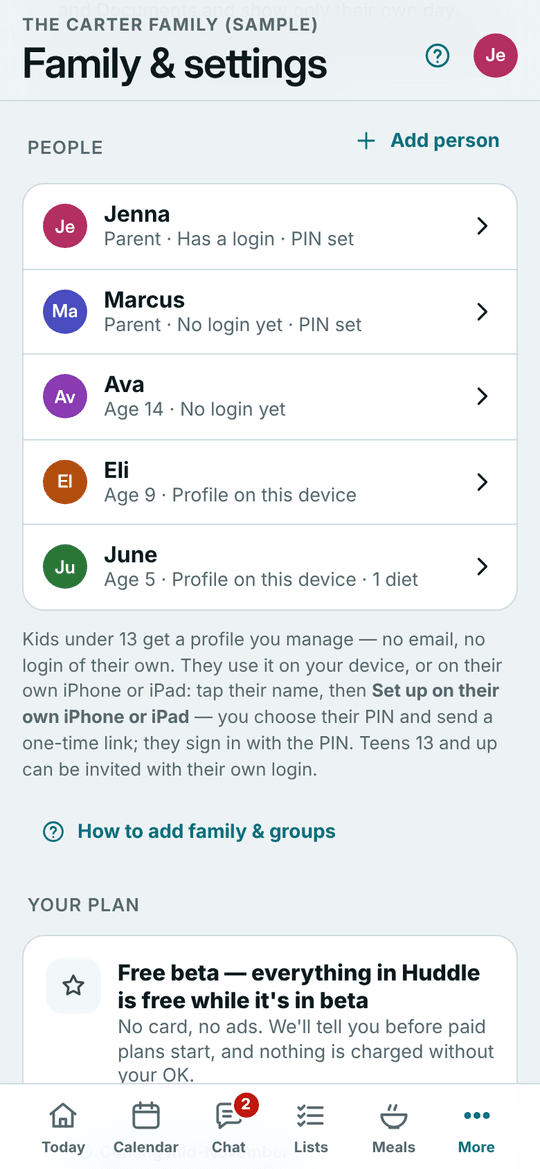
- Open More → Family & settings.
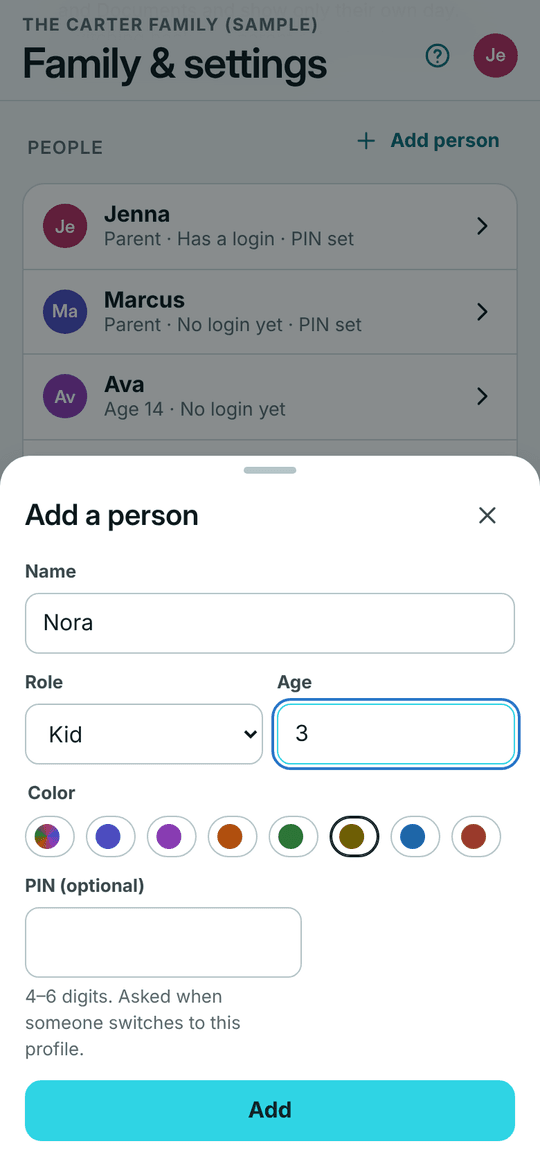
- Under People, tap Add person.
- Type their name, pick Parent, Teen (13+) or Kid, and their age. A PIN is optional.
- Tap Add.
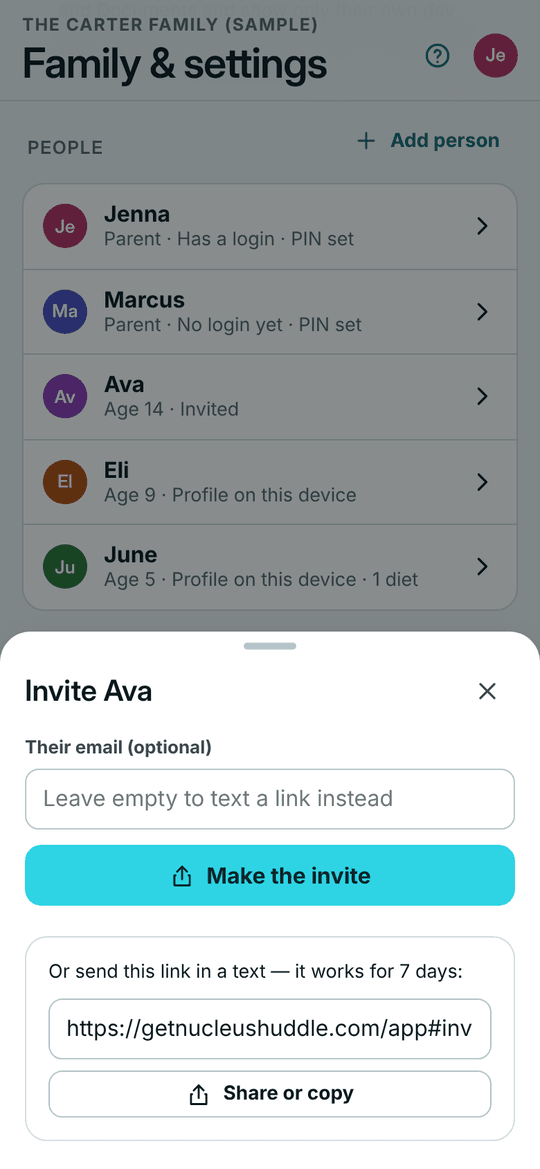
- To give a teen or another parent their own login, tap their name, then Invite [name] to their own login.
- Type their email, or leave it empty, and tap Make the invite. Text them the link with Share or copy — it works for 7 days.
Kids under 13 never get an email or password — you make their profile.
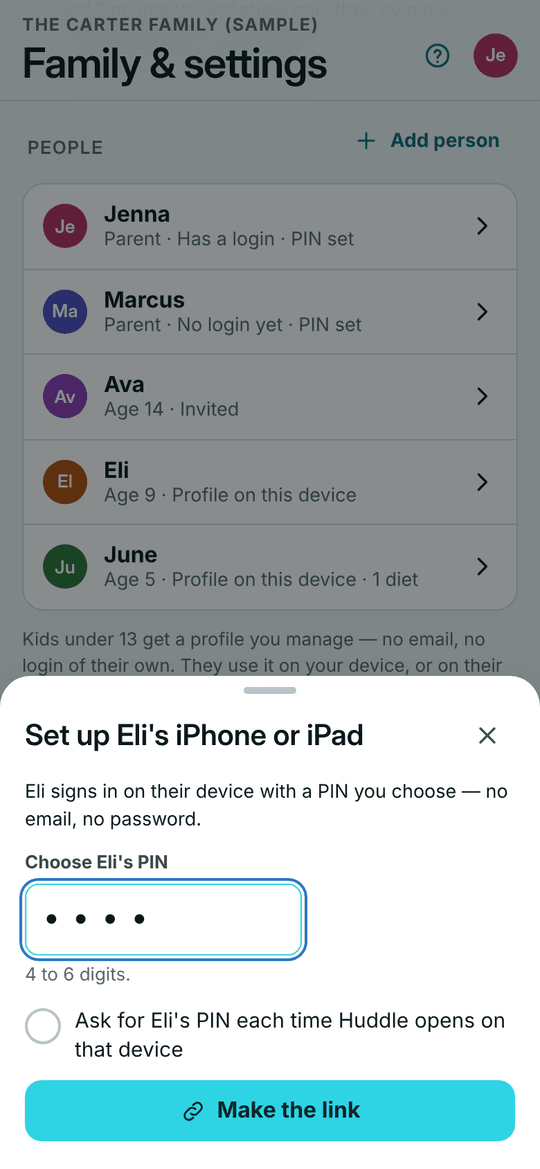
A kid's own iPhone or iPad — with a PIN
- In Family & settings → People, tap the kid's name.
- Tap Set up on [name]'s own iPhone or iPad.
- Choose their PIN (4 to 6 digits). To ask for it every time, tick Ask for [name]'s PIN each time Huddle opens on that device.
- Tap Make the link.
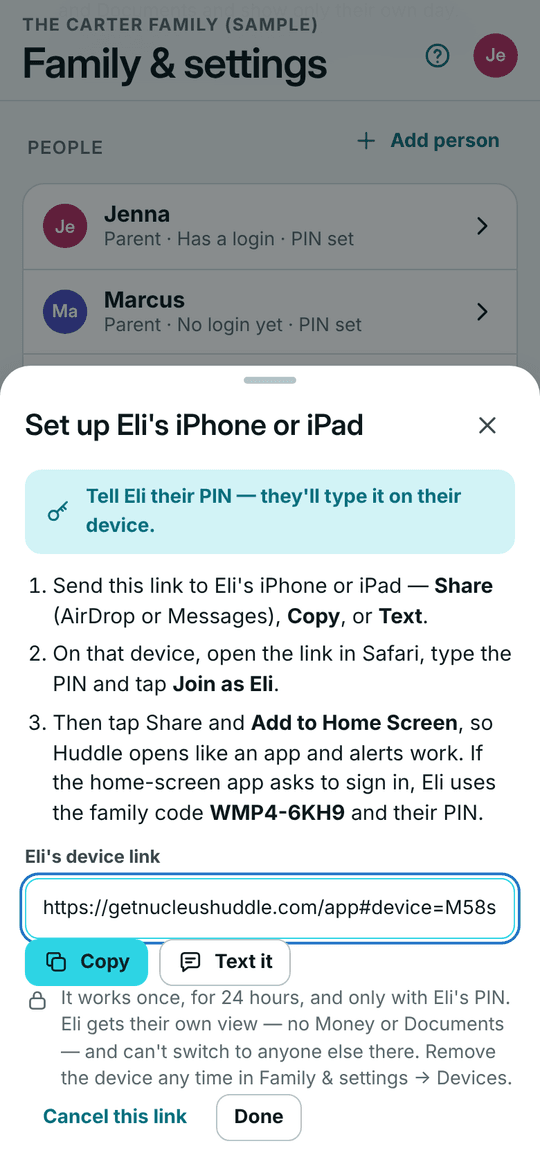
- Send it to their device: Share (AirDrop or Messages), Copy, or Text it. It works once, for 24 hours.
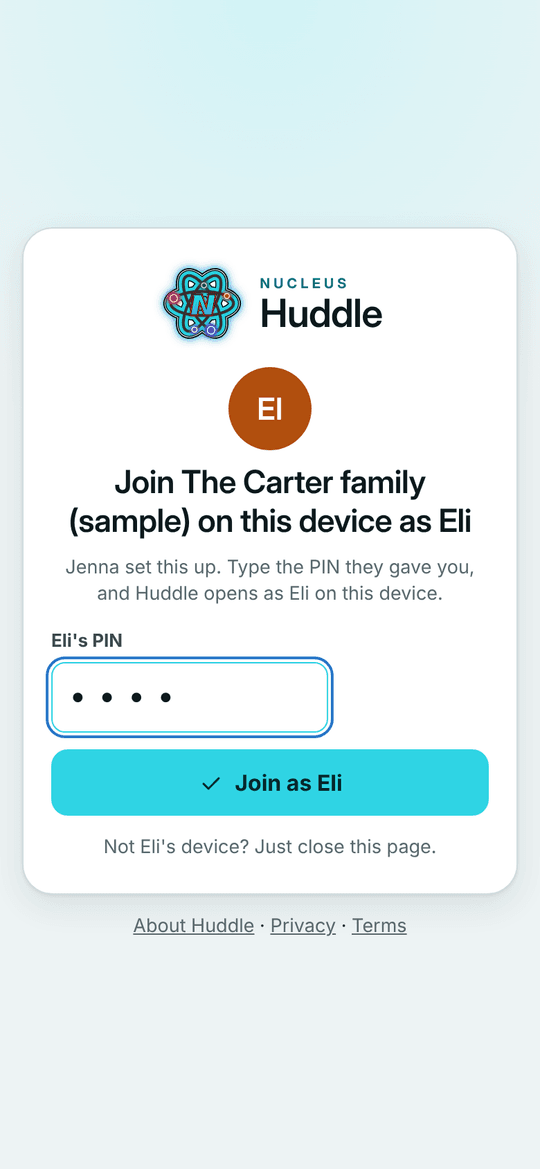
- Tell them their PIN. On their device they open the link, type the PIN and tap Join as [name].
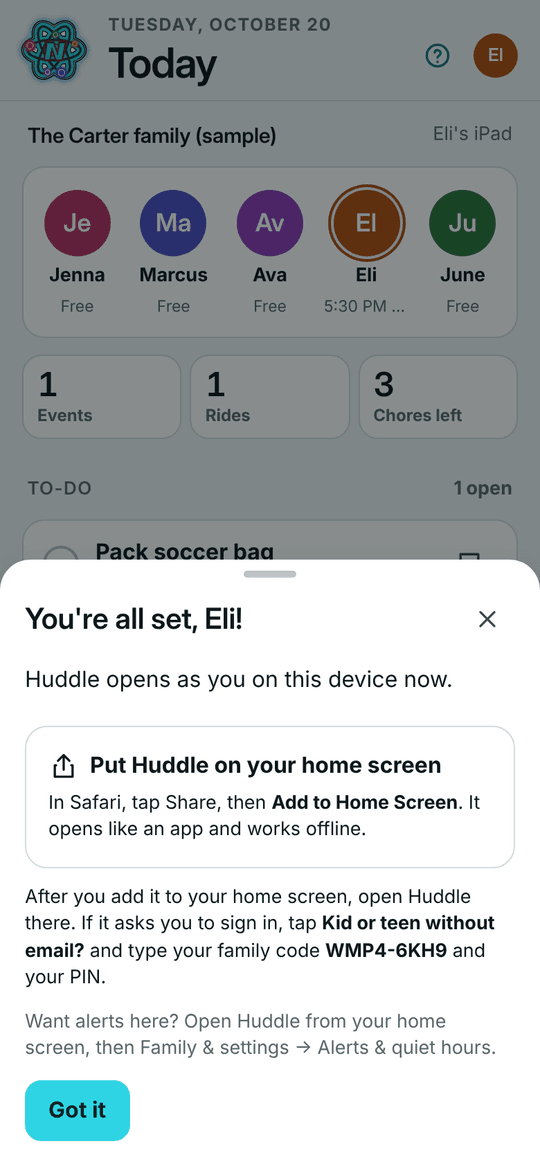
- In Safari, they tap Share → Add to Home Screen, so Huddle opens like an app and alerts work.
On their device Huddle stays on their profile — no Money or Documents, and no switching to anyone else. If the Nucleus Huddle app is on that iPhone or iPad, the link opens right in the app.
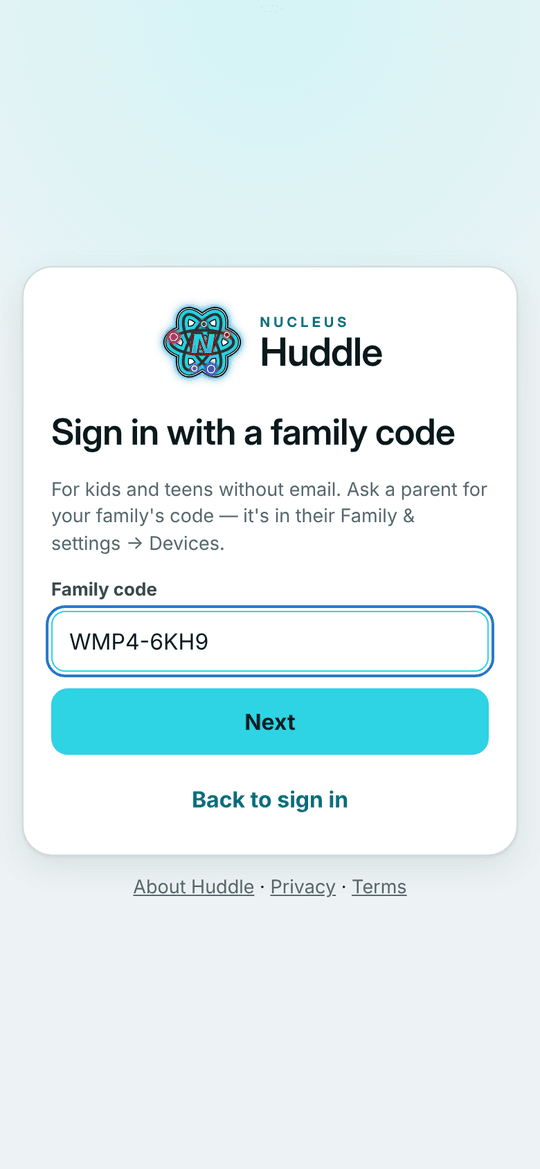
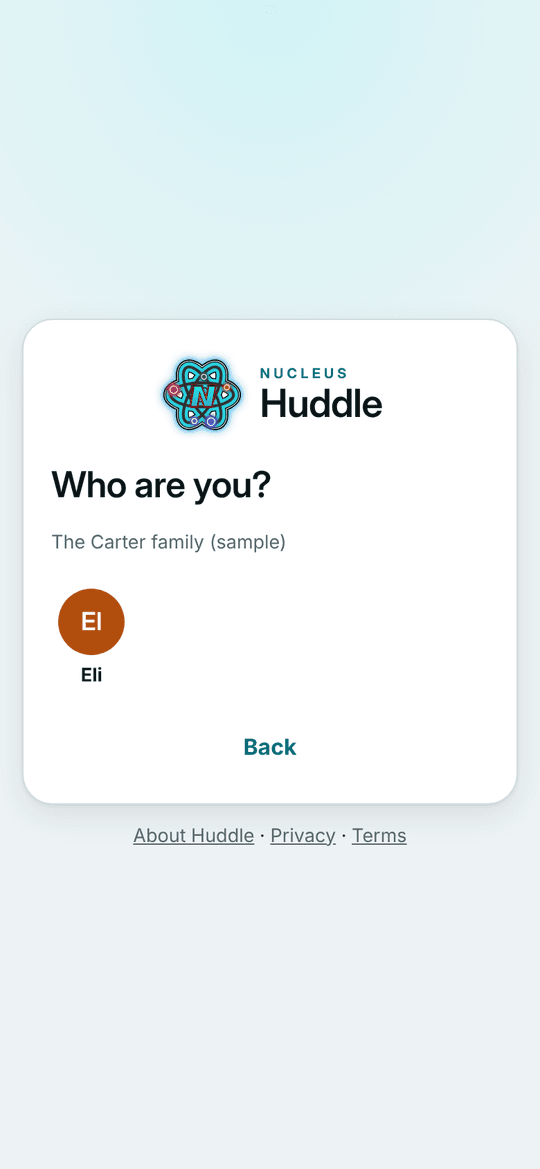
Signing in on a kid's device with the family code
The home-screen app keeps its own sign-in apart from Safari, so it can open signed out. No new link needed:
- On the sign-in screen, tap No email? Sign in with a family code.
- Type the family code (it looks like 7KQ4-MX2P) and tap Next.
- Tap your name.
- Type your PIN and tap Sign in.
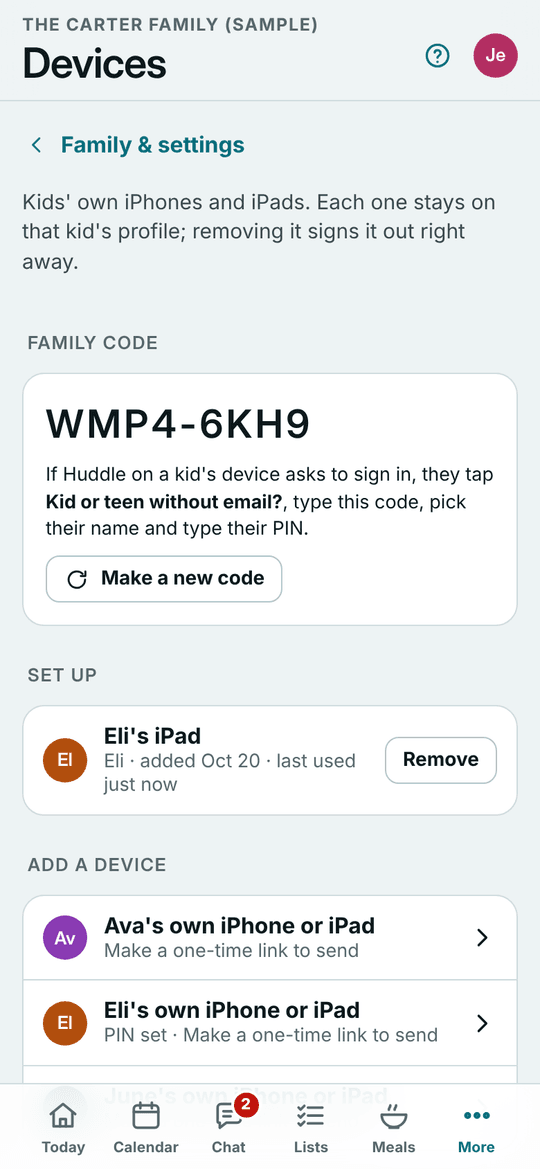
Parents find the family code in Family & settings → Devices.
Remove a device or reset a PIN
- Open Family & settings → Devices.
- To sign a kid's device out, tap Remove next to it. It's signed out right away.
- Forgot a PIN? In People, tap their name → Change PIN, type a new one and tap Save PIN.
- A PIN locked after 10 wrong tries shows under PIN locked — tap Unlock.
- Worried someone else has the family code? Tap Make a new code.
Invite another family
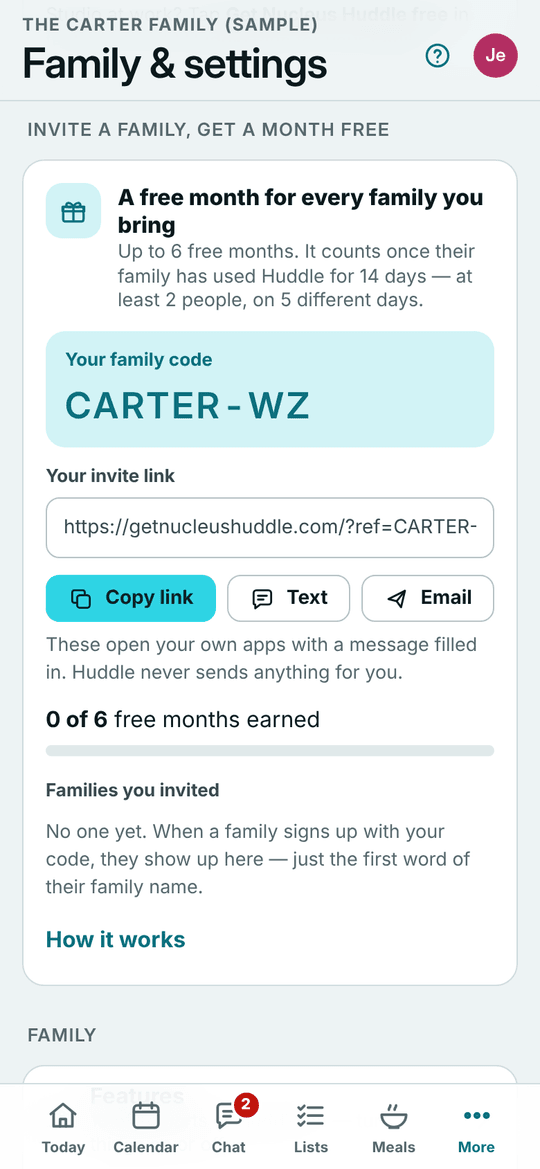
- Open Family & settings and find Invite a family, get a month free — it's there for our first 20 families (referral partners).
- Tap Share, Copy link, Text or Email. They open your own apps with a message filled in — Huddle never sends anything for you.
- They sign up with your link, or type your family code under Who invited you?
- Once they've settled in, you earn a free month — up to 6.
Find your way & Food
Find your way around
- The bar along the bottom: Today, Calendar, Chat, Food, Bible and More. On an iPad or a computer they run down the side.
- Food has the week's meals, the grocery list with Kids' requests under it, recipes, Kids cook and the pantry.
- Calendar is where everyone adds events and connects team apps with Connect a league app.
- More has Lists & to-dos, Kids, Trips, Money, Health & goals, Groups with other families and Family & settings.
- The quick To-do button stays on Today.
Old links still work: a link to Meals opens Food, and a link to Lists opens your to-dos.
Kids' requests from the store
- On the kid's profile or their own device, open Food → Groceries.
- Tap Ask for something. Type what it is — and why, which store or a photo if they like — then tap Ask a parent.
- Parents see it under the list in Kids' requests, and get an alert. Tap Approve and it goes on the list "For" that kid.
- Or tap Deny, pick a kind reason or write one, and tap Say not this time. The kid gets an alert either way.
- The settings button next to Kids' requests turns requests on or off, sets how many can wait at once, and can let kids add straight to the list.
Teens add straight to the list (and can ask too). Answers are kept under Answered.
Recipes for each person
- Open Food → Recipes. The chips across the top are folders: All, Family favorites, Everyone and each person's recipes.
- Tap New recipe (or Paste a recipe). It saves under your name — a parent can change Whose recipe.
- Kids save recipes too. A parent opens a new one and taps Looks good.
- Tick Kid-friendly and it shows in Kids cook, with who does what by age.
Family favorites are the recipes two or more of you like, or rate 4 stars and up.
Cooking with kids
- Open Food → Kids cook.
- Pick an age — 3–5, 6–8, 9–12 or 13 and up — to see what's safe and the jobs that fit.
- Open a kid recipe: the tools, ingredients with allergy tags, each step with its age, and who does what.
- Tap Save to our recipes, then plan it like any meal.
- Before you start, read Measuring basics. While you cook, tick off Clean as you go.
Steps marked "Grown-up helps" — knives, the stove, the oven, the blender — are done together until about 13.
Who's doing what for a meal
- Open Food → Meals and plan the meal.
- Tap Who's doing what under that day (or in the meal itself).
- Tick the jobs — Huddle suggests them from the recipe — and pick who does each. Auto-assign hands them out by age.
- Add points for the kids' jobs if you like, then tap Save jobs.
- Each person sees Tonight you're on on their Today — on their own device too — and checks it off.
A kid can take an open job with I'll do it. Jobs with points count toward rewards, like a chore.
For groups
Start a group and invite with a code
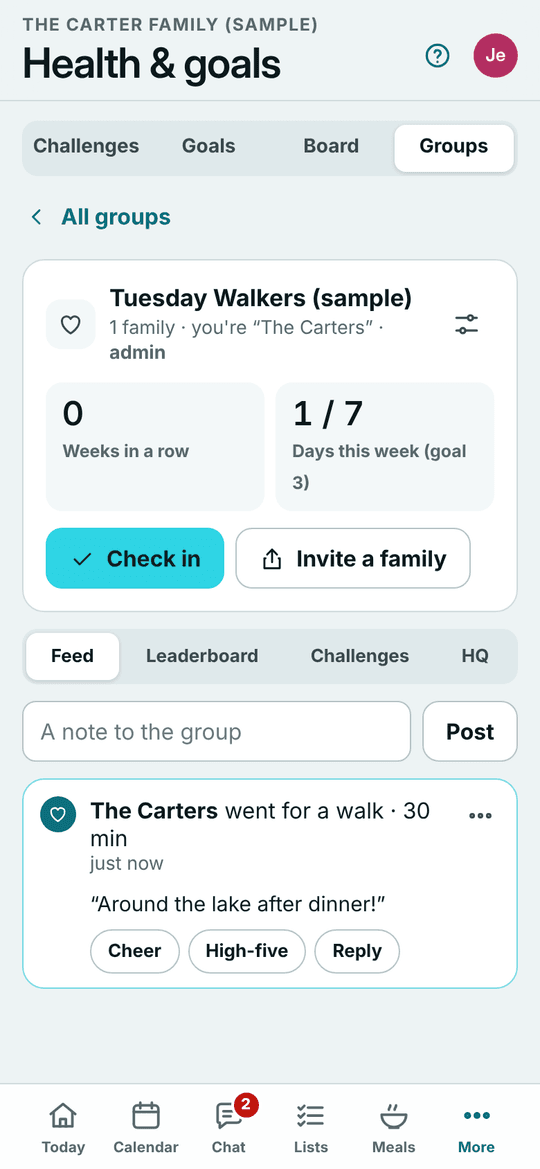
- Open More → Health & goals → Groups.
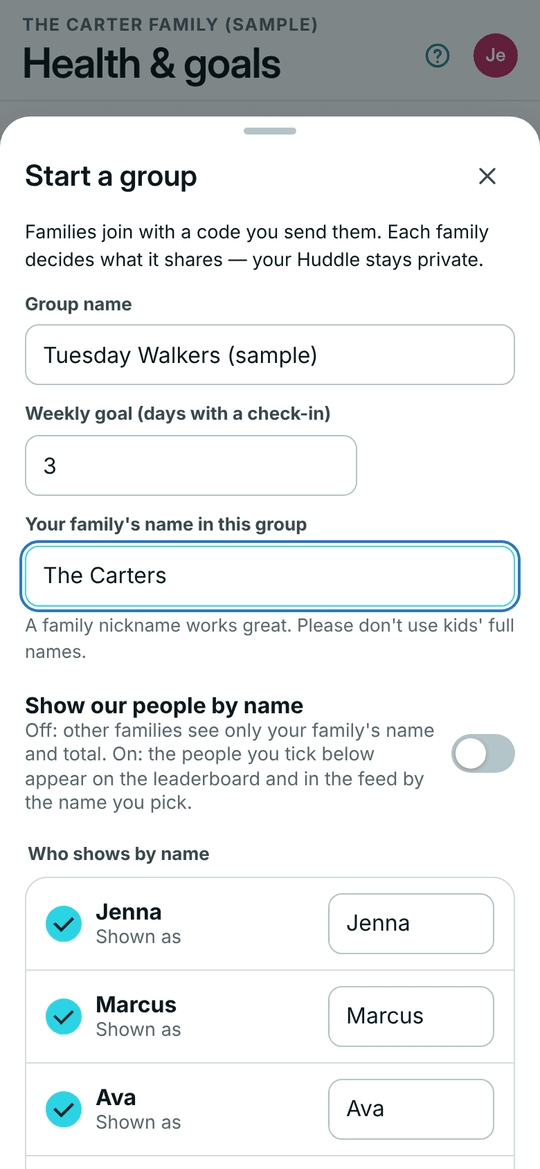
- Tap Start a group. Give it a name and a weekly goal, pick your family's name in the group and who shows by name, then tap Start the group.
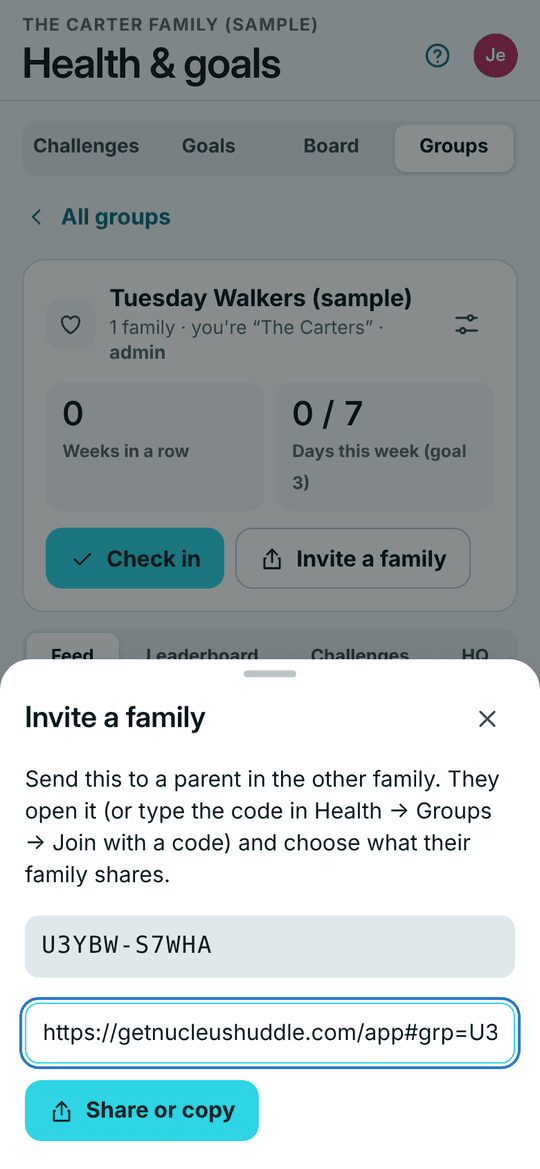
- Share the code: tap Invite a family → Share or copy. Other families open the link, or type the code.
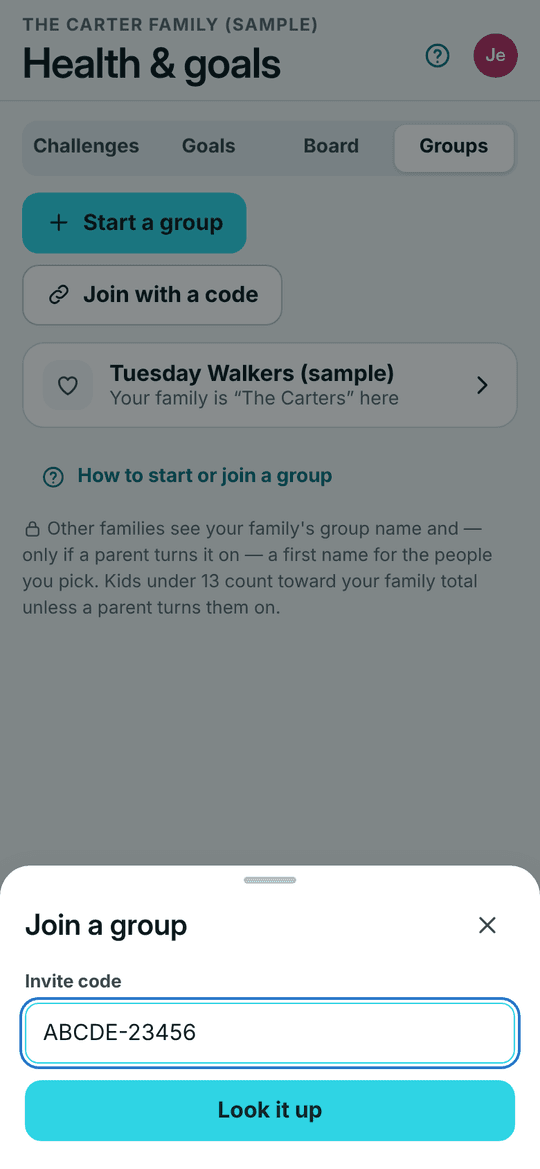
- To join one, tap Join with a code, type the code and tap Look it up, then Join the group (or Ask to join, if the group's admins say yes first).
Other families see only your family's name in the group — and first names only if a parent turns on Show our people by name. Kids under 13 cheer with the buttons.
Group HQ — for the group's parents
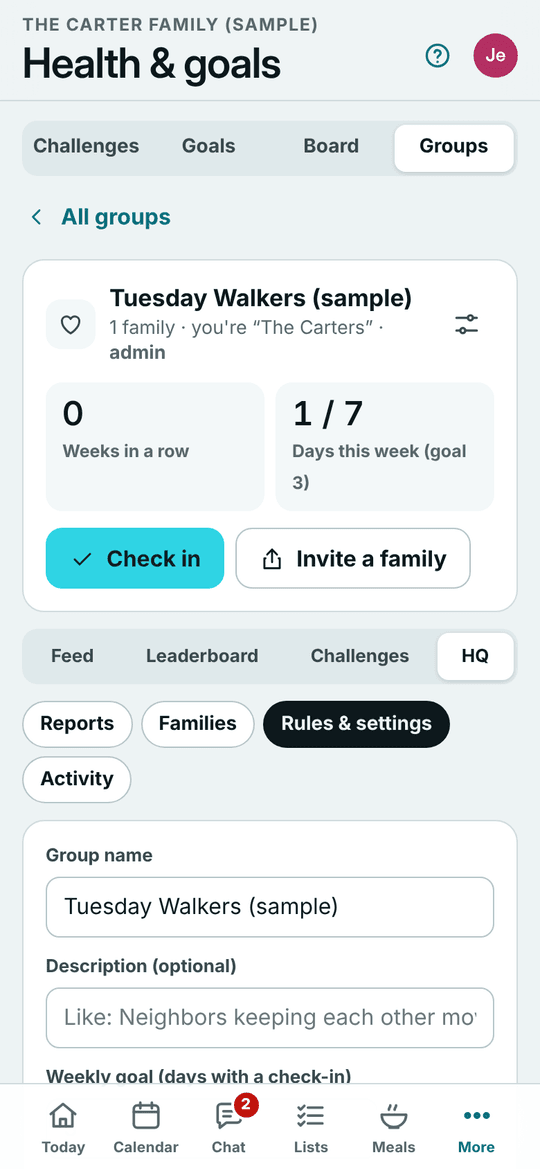
- In your group, tap HQ.
- Reports: anything a family reported. Two families reporting something hides it until a parent looks.
- Families: who's in, who's asking to join, co-admins.
- Rules & settings: the name, house rules, typed notes, who starts challenges, whether new families need an OK, and a new invite code.
Something unkind in the feed? Tap ••• on it and Report. Nobody is told who reported it.
Accountability groups (up to 5 people)
A few friends keeping each other going — a walk, a workout, a run.
- One of you starts it: Health & goals → Groups → Start a group, with a weekly goal (days with a check-in).
- Send the code to your friends — up to 4 more, so 5 people in all. Each one joins from their own Huddle with Join with a code.
- Tap Check in when you do the goal.
- Cheer and high-five in the Feed, and watch the weekly streaks on the Leaderboard.
- Want a little competition? Under Challenges, tap Start a group challenge.
Joining a group is free on Huddle Free. Starting one is part of Huddle Plus. A plan just for an accountability group of friends (not one household) is coming soon, priced the same as one family, for up to 5 people — see Pricing.
Start now — the first 1,000 families get Huddle Plus free for a year, no card.
Questions? Write to support@getnucleusms.com.